Storage Device Files
- 4.2
- Rating
- 50.00K
- Installs
- Free
- Price

 Analysis by App-foxy
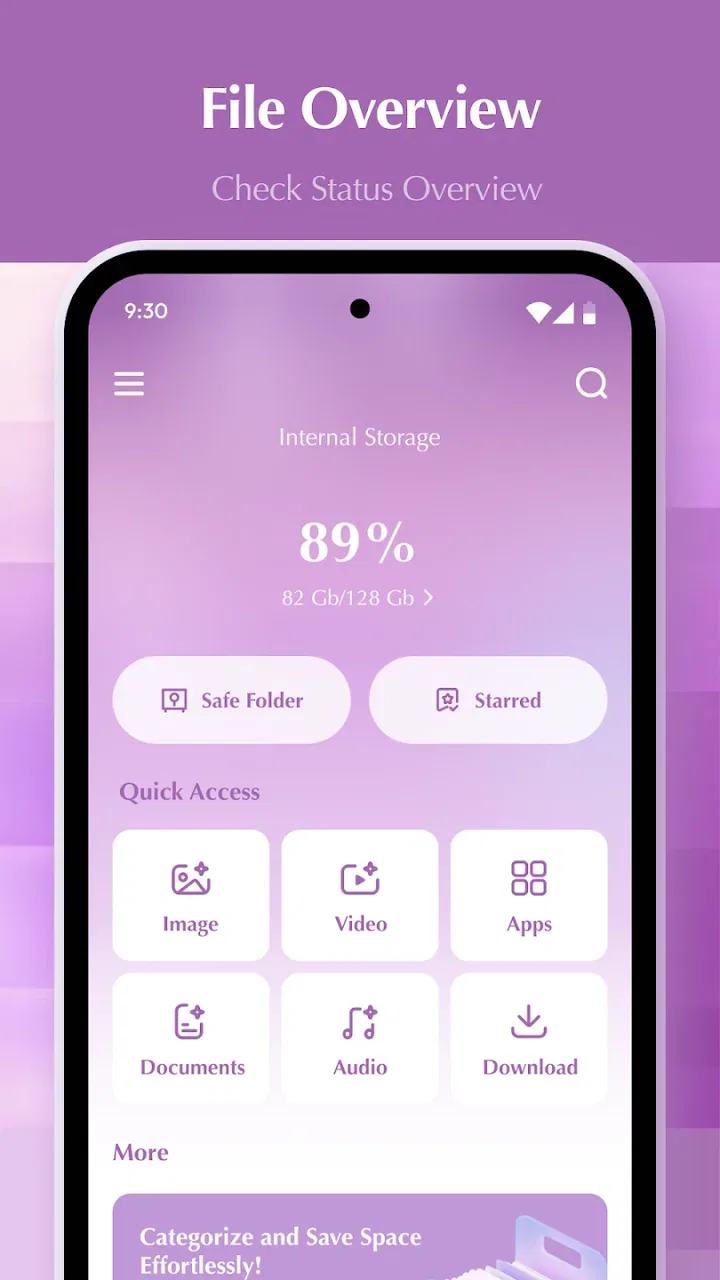
When my phone starts filling up, I usually do not need a complicated system with cloud dashboards, media libraries, or a long list of automation tools. I need to see what is stored, find the right folder, move a file, and remove the clutter without getting lost. Storage Device Files is built around that straightforward need. It is a free file-management app for Android from royacenuke, and after using it as a practical storage tool, I found its appeal easy to understand: it keeps the job focused on handling files rather than turning file browsing into a separate project.
The app belongs to the tools category and is aimed at everyday storage tasks. Its age rating is Everyone, so it is positioned as a general-purpose utility rather than a specialist application. It runs on Android 8.0 and later, which makes it relevant to people using older phones as well as newer devices. The current release is version 1.0.2, and the app has already passed the fifty-thousand-install mark with a 4.2 average from roughly one hundred ratings. Those figures suggest a modest but real user base, while the small number of written reviews means I would judge it mainly by how well its basic workflow fits my own needs.
From a crowded phone to a usable storage workflow
When I share a phone or help someone else sort out its files, I start by agreeing on the task rather than handing over the whole storage area to explore. A file manager can make folders easier to reach, but it does not create separate accounts or decide which files belong to whom. That boundary matters, and it shapes how I’d coordinate everyday use with Storage Device Files.
You May Also Like

 AccuWeather: Weather Radar
AccuWeather Review: A Quick, Clear Forecast for Everyday Decisions
For everyday plans, the best forecast is the one you can understand quickly. AccuWeather makes rain timing, radar, and local conditions easy to act on, with a few trade-offs.

 Hill Climb Racing
Why Hill Climb Racing Still Turns Crashes Into One More Run
A tiny car, a bumpy hill and one more upgrade: Hill Climb Racing keeps resurfacing because its simple chaos makes every near-miss feel personal.

 AliExpress - Shopping App
AliExpress Makes Global Shopping Feel Personal, but Shoppers Bear the Risk
AliExpress turns a global marketplace into a pocket-sized discovery engine. Its reach is useful, its shopping loop compelling, and its trade-offs easy to miss.

 Lords Mobile: Kingdom Wars
Lords Mobile Is a Kingdom-Building Routine, Not a Quick Match
A case-by-case verdict on the building, battles, device demands, and social commitments that make Lords Mobile rewarding for some players and exhausting for others.

 PDF Scanner app - TapScanner
TapScanner Makes Paperwork Easier to Capture, Check, and Share
TapScanner makes scanning with a phone feel less like a rescue operation and more like a dependable step in getting work done. Its capture tools are useful, though not flawless.

 Block Blast!
 Shows How Much a Puzzle Game Can Leave Out
A quiet grid game shows why puzzle players increasingly value instant clarity, repeatable skill and low-pressure play—and where the genre still needs to catch up.
More From Our News Desk
View All News


Starting with the actual problem
The best way to understand this app is to begin with a familiar situation. Imagine that I have downloaded several documents, saved pictures from a messaging conversation, and copied a video for a trip. A few days later, I know the files are somewhere on the phone, but I do not remember the exact folders. The immediate problem is not advanced file administration. It is orientation: what is taking space, where did a file land, and how can I put it somewhere sensible?
Storage Device Files works well for this starting condition because it treats the phone as a collection of accessible storage locations instead of hiding everything behind a specialized content library. I can approach the task as a folder problem. That matters when I am handling a document with an unfamiliar extension, a downloaded archive, or a file that another app does not display in its own gallery. A photo app may show images beautifully, but it is not always the best place to understand the surrounding folder structure.
I also like this approach when I am preparing to share a phone with someone else or hand a file to a different app. A file manager sits between those actions. It lets me inspect the item first, decide where it belongs, and then continue with the appropriate next step. The useful mindset is to treat it as a control panel for storage, not as a replacement for every app that opens a file.
Step one: locate the right storage area
My first move is to open the app and orient myself before touching anything. With a file manager, rushing into a delete or move action is usually the easiest way to create confusion. I look at the available folders and identify whether I am dealing with something I downloaded, something created by another app, or something I copied manually. That small pause is important because similar filenames can exist in different locations.
This is one area where a simple design can be more useful than an overloaded alternative. A feature-heavy file manager may offer cloud accounts, media categories, compression tools, cleaners, and visual recommendations. Those extras can be valuable, but they also add decisions. Storage Device Files is more comfortable when my goal is to browse the phone directly and make a clear change without first configuring a larger ecosystem.
For anyone who regularly moves files between folders, I recommend creating a personal naming habit rather than relying on memory. I might keep work documents together, separate temporary downloads from files I want to retain, and use a predictable folder for items that need to be sent later. The app does not need to invent that system for me; its value is giving me a practical place to apply it.
Step two: inspect before moving or deleting
Once I reach a likely folder, I slow down and inspect filenames. This is especially important with downloads, where names can be vague or duplicated. I do not treat a file manager as a visual guessing game. If an item looks unfamiliar, I check its context and avoid deleting it merely because the name is untidy. A clean-looking folder is not automatically a safe folder.
This is also where Storage Device Files is useful for separating temporary material from files that have a future purpose. I can work through a folder in batches: identify what I still need, decide what can be moved, and leave uncertain items alone until I have verified them elsewhere. That workflow is safer than using a broad storage-cleaning button, because a cleaner may judge files by age or size while I understand why a particular file matters.
A practical tip is to handle one source folder at a time. If I jump between downloads, screenshots, and application folders, I lose track of what I have already checked. The app is better suited to deliberate browsing than to frantic cleanup. Its straightforward character encourages me to make smaller decisions, which reduces the chance of removing something needed by another app.
Step three: prepare the file for its next destination
After identifying an item, the next question is what should happen to it. A document might need to go into a dedicated folder, a picture might need to be separated from a temporary download, and a video might need to remain accessible offline. I use the file manager at this handoff point because it gives me a storage-level view rather than forcing me to open the file in the app that originally created it.
That distinction becomes important when the receiving app is not the original source. For example, a document downloaded through a browser may eventually be edited in a productivity app, while an image received in a chat application may need to be uploaded to a website. Organizing the file first makes the later handoff easier to understand. Instead of searching through every recent item, I can start from a known folder and select the intended file.
I would not expect this utility to replace a dedicated sharing tool or a cloud-storage application. Its role is earlier in the chain: find the item, organize it, and make it available for the next action. That narrower role is a strength for people who want less clutter, but it can feel limited if they expect a complete cross-device file platform.
Step four: complete the everyday handoff
Consider a realistic example. I download a travel document, locate it in the storage browser, and move it into a folder I will recognize later. When I need to send it, I start from that organized location instead of searching through browser history or a long list of recent files. If I later need to attach it to an email or upload it to another service, the file has a clear home and a predictable name.
The same pattern works for a short video copied for offline viewing. I can separate it from temporary downloads so that I know which item is intentional. If I am passing a file to a colleague, the handoff becomes less error-prone because I am selecting from a folder I have already checked. This is a small improvement, but it is exactly the kind of improvement that makes a basic utility worthwhile.
For family use, the simple workflow can also be easier to explain than a large file-management suite. I can tell someone to open the storage tool, find the folder, and work with the file there. The Everyone rating reflects its broad positioning, although a beginner may still need guidance about which folders are safe to change. Simplicity in the interface does not remove the need for care when handling shared or application-created files.
What the result feels like
The result is not a dramatic transformation of the phone. It is a more understandable storage layout and a faster path from “I know this file exists” to “I know where it is now.” That is the app’s strongest outcome. It turns vague storage anxiety into a sequence of manageable actions: locate, inspect, organize, and hand off.
I find this especially valuable when the phone has accumulated files from several unrelated sources. A gallery focuses on pictures, a video player focuses on media, and a browser focuses on downloads. A file manager connects those separate areas at the folder level. That makes it easier to see the less visible material that other apps may not present clearly, including documents and miscellaneous files.
Another useful result is better personal discipline. If I use the same destination folder for a recurring type of file, later searches become shorter. This is not an automatic organization feature; it is a workflow advantage created by having a direct tool available. In my experience, the app pays off most when I use it regularly for small corrections instead of waiting until the phone becomes completely disorganized.
Where the workflow breaks down
The straightforward design also sets limits. If I want automatic categorization, deep storage analysis, cloud synchronization, or a polished media-management experience, I would look at a more specialized alternative. Storage Device Files is not the right choice simply because it can browse files. The better option depends on the job. A cloud app is more appropriate when the priority is access across devices, while a media library is better when the priority is browsing photos and videos by visual content.
There is also a learning curve around folders created by other applications. A simple file manager can show me a location, but that does not mean I should freely rename, move, or delete everything inside it. Some app-specific folders may be important to the application that created them. I therefore avoid broad cleanup and focus on files I recognize. This is a genuine trade-off: direct access gives me control, but control requires better judgement than a heavily guided cleaner.
Another point of friction is that a basic storage workflow can feel slow when I have a large, messy collection. If I need to review many files one by one, a tool with stronger search, filtering, preview, or batch-management features may be more efficient. I would choose this app for clarity and directness, not for an elaborate power-user dashboard. That distinction should shape expectations before installing it.
Who should use it and who should skip it
I would recommend Storage Device Files to someone who wants a free, uncomplicated way to browse folders and manage ordinary phone files. It suits people who download documents, move personal media, keep offline copies, or frequently need to locate an item for another app. It is also a sensible choice for users who find dedicated galleries and download screens too narrow for the storage tasks they actually need to perform.
I would be more cautious about recommending it to someone looking for a complete storage strategy. If the main requirement is automatic backup, device-to-device synchronization, remote access, or advanced file operations, a more specialized tool will probably be a better fit. The same applies to users who prefer the app to make cleanup decisions for them. Here, I remain responsible for deciding what is safe to move or remove.
The developer, royacenuke, has kept the concept focused rather than trying to turn it into a multi-purpose platform. That focus is reflected in the current 1.0.2 release: I see it as a practical utility for direct file handling, not a mature replacement for every kind of storage service. Its 4.2 average is encouraging, but I would still install it with a clear understanding of that scope.
My final workflow recommendation
If I were showing a friend how to use it, I would suggest starting with one concrete task instead of attempting a full phone cleanup. Find a recently downloaded document, identify its folder, move it to a location with a clear purpose, and then use that same structure for the next few files. This approach reveals quickly whether the app’s direct style suits the way the person thinks about storage.
I would also keep a short safety rule in mind: organize what I recognize, leave application folders alone unless I understand them, and confirm the destination before completing a move. Those habits matter more than a long list of extras. The app is most effective when it supports careful decisions rather than encouraging indiscriminate deletion.
My overall impression is positive but deliberately measured. Storage Device Files does not need to be flashy to be useful. It gives me a direct route from a crowded, confusing phone to a folder structure I can understand, and it handles the important handoff between stored files and the apps that use them. Choose it when you want a focused Android file manager; choose something else when synchronization, automation, or advanced batch control is the real priority.
For everyday browsing and organization, I would recommend giving it a try. Its free price removes the usual barrier to testing a simple utility, and its broad compatibility makes it accessible to many Android users. Just approach it as a hands-on storage tool, not as an automatic cleaner or cloud replacement. Used that way, Storage Device Files earns its place as a practical helper for keeping phone files findable and ready for their next destination.
FAQs for Storage Device Files
01What is Storage Device Files and how does it work?
Storage Device Files is an app designed to help users manage files across various storage devices, including internal memory, SD cards, and cloud storage. It provides a user-friendly interface to easily navigate, organize, and transfer files, ensuring efficient file management on your Android or iOS device.
02Is Storage Device Files safe to use for managing sensitive data?
Yes, Storage Device Files prioritizes user privacy and security. The app employs encryption protocols to protect sensitive data during transfers and while stored. However, users should ensure they download the app from reputable sources to avoid counterfeit versions that may compromise data security.
03Does the app require an internet connection to function?
Storage Device Files can operate both online and offline. Basic file management functions, such as organizing and transferring files between local storage options, do not require an internet connection. However, accessing cloud storage services will require you to be connected to the internet.
04What file formats are supported by Storage Device Files?
The app supports a wide range of file formats including, but not limited to, documents (PDF, DOCX), images (JPEG, PNG), videos (MP4, AVI), and audio files (MP3, WAV). This versatility ensures users can manage nearly any type of file on their device or cloud storage.
05Are there any in-app purchases or subscriptions required?
Storage Device Files offers a free version with essential features. However, for advanced functionalities such as additional cloud integration, enhanced security options, and ad-free experience, users may opt for in-app purchases or a subscription model, depending on their specific needs.
Pros
- User-friendly interface for easy navigation.
- Supports multiple file formats seamlessly.
- Fast file transfers with minimal lag.
- Secure encryption for sensitive files.
- Efficient file organization features.
Cons
- Limited cloud storage integration.
- Occasional sync issues with devices.
- Ads can be intrusive at times.
- Premium features require subscription.
- No offline mode for certain features.

Storage Device Files
Gallery